
The Cyber Security App for your Whole Family
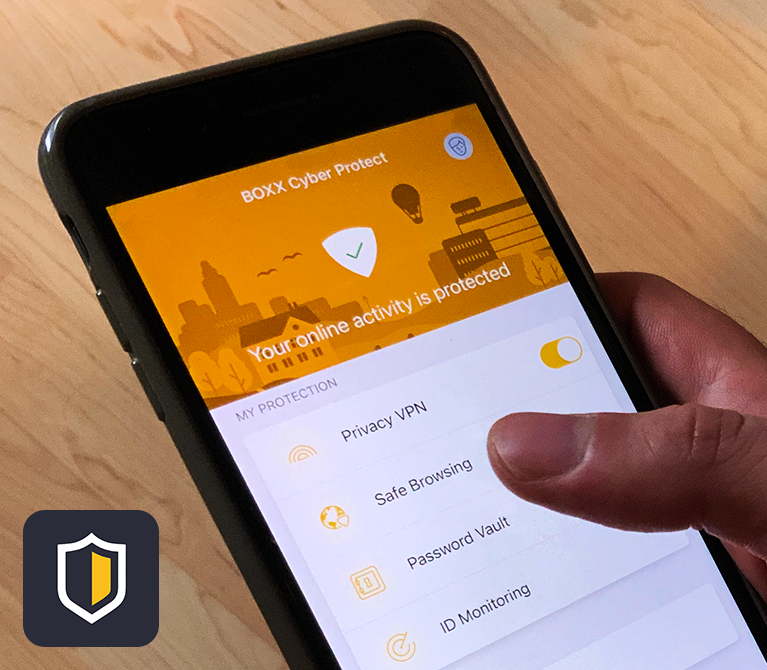
The BOXX Cyber Protect app helps monitor and protect the digital wellbeing of you and your family.

Protect what matters most
In a world of selfies, social media and digital avatars the line between our online and real-world lives has never been blurrier. The BOXX Cyber Protect app keeps your family’s personal, sensitive and private information secure while you’re online.
Do you want to view this page in Spanish? Click here.
-

Protect Personal Information
Continuous protection for the whole family while they browse, bank or shop online, even on-the-go. Parents get administrator access including event notifications and the ability to set time limits and bedtime.
-

Enhanced Privacy with VPN
With the benefit of the VPN feature you can surf carefree on public Wi-Fi without exposing yourself to hackers or advertisers. Your traffic is encrypted and impossible to intercept.
-

Password Manager
Keep your passwords safe and easily accessible from all devices with the Password Vault. Enable autofill and you won’t need to type your passwords anymore. The password generator improves your password security once and for all.
Put a padlock on your private life with BOXX Cyber Protect
BOXX Cyber Protect will warn you when you try to access a known harmful website to keep your personal information out of the hands of criminals. If a data breach occurs and your information is exposed, we will give you unique expert advice for each individual type of personal information.
Explore the full functionality of the BOXX Cyber Protect app with our handy user guide.


BOXX Cyber Protect FAQs
Have questions about the app? Find answers here.
How does BOXX Cyber Protect App help keep me safe online?
- Protects your device against harmful content/apps
- Protects your device against virus attacks and ransomeware
- Protects your personal information from being compromised
- Protects your online browsing, banking and shopping
- Keeps you away from malware and phishing sites maintaining privacy
- Secures your internet connection and online privacy with a Virtual Private Network (VPN)
- Helps prevent online identity theft with alerts when personal credentials have been compromised online
- Stores passwords securely and gives you access across any device with Password Vault
- Protects your entire family and friends
How do I install the app on my mobile device?
iOS and Android
- Click on “Install BOXX Cyber Protect” in the welcome email you have been sent
- Install BOXX Cyber Protect from your app store using the link in the welcome email
- Once the app is installed on your device, launch the app and complete the app set-up step
- Enter the log-in details you were sent in the welcome email (your email address and the One Time Password provided)
- Configure notification settings

How do I install BOXX Cyber Protect app in my Windows computer?
- Go to the BOXX Cyber Protect app on your phone and open People & Devices section.
- Click on Add Device.
- Select your new device and click Continue.
- Select where you want to receive the installation link. For computers, the recommended option is email.
- Open your email inbox from your Windows computer and click on the installation link.
- Follow the instructions and start protecting your new device.
If you are not able to install the BOXX Cyber Protect app, please see “Why am I not able to install the BOXX Cyber Protect app on my Windows computer?” for more information.
Why am I not able to install the BOXX Cyber Protect app on my Windows device?
These might be the reasons:
- You might be using another antivirus. To allow the BOXX Cyber Protect app to protect your new device, please uninstall or disable (for Windows Defender) it, and / or
- You are using a Windows version that the BOXX Cyber Protect app is not supporting. The BOXX Cyber Protect app supports the following operating systems: Windows 11 (ARM-based tablets are not supported), Windows 10 with the latest updates installed (all 32-bit and 64-bit editions; ARM-based tablets are not supported), Windows 8.1 (ARM-based tablets are not supported), and Windows 7 SP1 (all editions).
How do I enable VPN Protection?
With the benefit of the VPN feature you can surf carefree on public Wi-Fi without exposing yourself to hackers or advertisers. Your traffic is encrypted and impossible to intercept. VPN is a great tool for protecting privacy of internet use at home and while travelling.
- Turn VPN on and off from the main page of the BOXX Cyber Protect app
- Select ‘Privacy VPN’
*Note: Some streaming video services may block the use of a VPN. If you ever experience lagging video content, or the streaming service does not work, try turning off VPN. Websites and services that require your location may be impacted by using VPN. If you ever experience content failing to load, or not working as you expect, try turning VPN off.
Remember to turn VPN back on when you are finished with that service.

How do I use the Password Vault?
Password Vault gives you an easy way to make sure that the account credentials for your online services, as well as your credit card details and other important information, stay both safe and conveniently accessible.
The main benefits of the Password Vault feature are:
- Password storage: Store all your passwords, login details, PIN codes, credit card details, and online banking credentials securely.
- Create passwords: Generate stronger, unique passwords for all your services and accounts.
- Autofill: Get your passwords automatically entered on login pages in your web browser to make it easier and quicker to access your account.
- Connecting devices: You can connect your devices to synchronize your passwords securely across them all.
How to set-up the Password Vault:
- Create a master password that you remember
- Open the app and select ‘Password Vault’
- Select ‘I’m a new user’
- Create a strong master password and select ‘Continue’
- Re-enter the created master password and select ‘Confirm’
- Create a recovery QR code by selecting ‘Save’ to your photos
*Note: Immediately create the recovery QR code, in case you need to regain your master password if forgotten - To use biometric authentication (Face ID/Touch ID), make sure ‘Use Touch ID To Unlock’ is turned on and select ‘Save’
You can sync your passwords across your devices. We recommend that you sync your passwords with another device running the app, just in case you lose or break your device. No matter what happens to one of your devices, sync ensures that you will always have access to your passwords on the other devices. For security reasons, we are not able to provide access to passwords you may store in the Password Vault.

How do I store passwords to the Password Vault?
To store a new password:
1. Open the app and select Password Vault.
2. Select + Add.
3. Select Password.
4. In the Title field, give your entry a descriptive name.
5. To customize the entry icon on the left, tap on it and select a background colour and a symbol for the entry. Once done, confirm your selection by selecting Done.
6. In the Username field, enter your username for the app or online service.
7. In the Password field, create a strong password or passphrase.
8. In the Web address field, enter the web address (URL) of the online service login page.
9. In the Notes field, enter any additional information.
10. To save the entry, select Done.
The new credentials have now been added to Password Vault.

How do I sync my Password Vault data on multiple devices?
You can sync your passwords across your devices. We recommend that you sync your passwords with another device running the app, just in case you lose or break your device. No matter what happens to one of your devices, sync ensures that you will always have access to your passwords on the other devices.
To sync your passwords across devices:
- Open the app using the device that contains the password vault data and select ‘Password Vault’
- Select ‘Settings’
- Select ‘Connect Devices’
- Select ‘Generate Sync Code’
- Open the app on the other device that needs to be synced with
- Select ‘Password Vault’
- Select ‘I Am An Existing User’
- Enter the sync code generated previously, paste into the Sync Code field
- Select ‘Connect’
- Enter your Master Password that you use on the device in which you generated the sync code
- Select ‘Confirm’
- Select ‘Save’

How do I set up Safe Browsing protection?
With Safe Browsing, you can use Safe Browser—a custom browser within the app that you can set as your default browser on your device. Safe Browser prevents you from accessing harmful websites accidentally and gives you extra security when banking online.
By using Safe Browser, the safety of a website is automatically checked before you access the site. If the site is rated as suspicious or harmful, the product blocks access to the site. The safety rating of a website is based on analysis from our website reputation service.
Safe Browser also increases the security when you enter an online banking site by preventing harmful software from distributing any of your private information.
Using Safe Browser is particularly important if the device belongs to a child. Safe Browser is used in tandem with Family Rules, so to protect a child’s device to the full, it is recommended to set Safe Browser as the primary browser and enable Family Rules.
To start using Safe Browser:
- Open the BOXX Cyber Protect app and select ‘Safe Browsing’

How do I set up ID Monitoring?
With ID Monitoring, you can add your email addresses and other personal information for monitoring and receive guidance on what to do if your personal information has been leaked in a data breach.
You will receive notification if the credentials you enter to be monitored are found to been compromised in a data breach. You will be provided with what personally identifiable information (PII) has been associated with the breach; what the breach was; what company or entity was breached; when the breach took place; and what other pieces of PII has been associated in the breach.
*Note: When you create your account, the email address that you use for the account is automatically added for monitoring. You will receive a confirmation email to the address in question and you need to confirm the email address before you can access the detailed information about the breaches and leaked data, if any, associated with this email address.
First item to monitor is your email address, followed by usernames and credit card numbers.
To add more items for monitoring:
- Select ‘ID Monitoring’
- Select ‘Monitored Items’
- Select ‘+ Add item’
- Select the type of item you want to add for monitoring
- Enter the information and select ‘Add’

How do I delete an ID Monitored item?
You can delete any monitored items by:
- Select ‘ID Monitoring’
- Select ‘Monitored Items’
- To delete an item from the list, first select the three dots next to the item and then select ‘Delete’
- Select ‘Delete’ to confirm

I do I install the BOXX Cyber Protect app on other devices?
- On the main page of the app, select ‘People & Devices’
- On the People & Devices view, select + Add device or user
- Select My device > Continue.
- Select how you want to deliver the installation link
- Select ‘Send Link’
- Open the message with the new device you want to protect and select ‘Install now’
- Use your log-in details for BOXX Cyber Protect in the new device
Installing Cyber BOXX Protect on your other devices (PC/MAC)
Follow the steps outlined above followed by:
- Select ‘Download for Windows PC / Mac’ to download the product installer.
- Launch the installer
- You need administrative rights to start the installation.
- If you agree to the End User License Terms, select ‘Accept and continue’
- After the installation is complete, select ‘Continue’ to finalise the protection for the device
You can sync your passwords across your devices. We recommend that you sync your passwords with another device running the app, just in case you lose or break your device. No matter what happens to one of your devices, sync ensures that you will always have access to your passwords on the other devices.
For details on how to sync your Password Vault on multiple devices see the FAQ, “How do I sync my Password Vault data on multiple devices?”
How do I set up protection for my child?
- Select ‘People & Devices’
- Select ‘Add Device’
- Select ‘My Child’s Device>Continue’
- Select delivery of installation link and select ‘Send Link’
- Open the link on the child’s device and follow installation instructions
- After the installation is complete, select ‘Open’
- If you agree to the End User License Terms, select ‘Accept and continue’
- Confirm you are setting up for a child
- From the set-up protection for drop-down, select ‘New Child Profile’
- Select ‘Continue’
- Enter the name of the child, select the age group the child belongs to, and then select ‘Next’
- On the Daily time limits page, turn on Daily time limits to set the maximum number of hours that the child is allowed to use the device during weekdays and weekends
- On the Bedtime page, turn on Bedtime to prevent the use of the device during night-time. You can set a different bedtime for school nights and weekend nights
- Turn on ‘Bedtime’ by using the sliders to limit the night-time use of apps or device
- Select ‘Next’
- Turn on ‘Content Filtering’, select the categories of web content you wish to block.
*Note: content filtering is applied in the Safe Browser within the app. To ensure complete protection other browsing apps on the device should be disabled. - Select ‘Next’


Still need some assistance?
If you have any questions about how to use the app please contact us directly.
